Video tutorial:
In the CORRESPONDENCE app, press the “+” button and select CORRESPONDENCE TEMPLATE.

Next, a list of available types of correspondence will appear.

Information
The new document will open on the INFORMATION tab. Enter the document number.
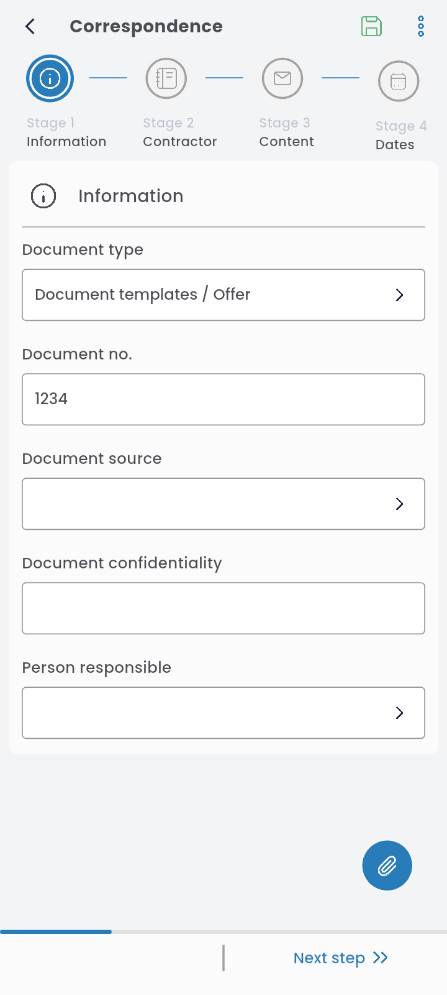
Select the document source

and confidentiality level.

If needed, you can similarly add the person responsible.
Contractor
In this tab, enter the contractor’s details. You can select from the list by clicking the FULL CONTRACTOR NAME field and typing search terms to find the contractor in the database. By clicking the arrows in the search window, a list of search parameters will appear to help you filter contractors. After selecting a contractor, the fields will be filled automatically. You can edit the information in the fields.

Content
In the CONTENT tab, enter the subject and the body of the document. You can also add an attachment by pressing the ATTACH FILE button, or: preview (eye icon), delete (red “x”), and download (down arrow icon).

You can preview any added attachment from any tab by pressing OPEN PREVIEW.

Dates
In this tab, set the dates: document effective start and end dates.
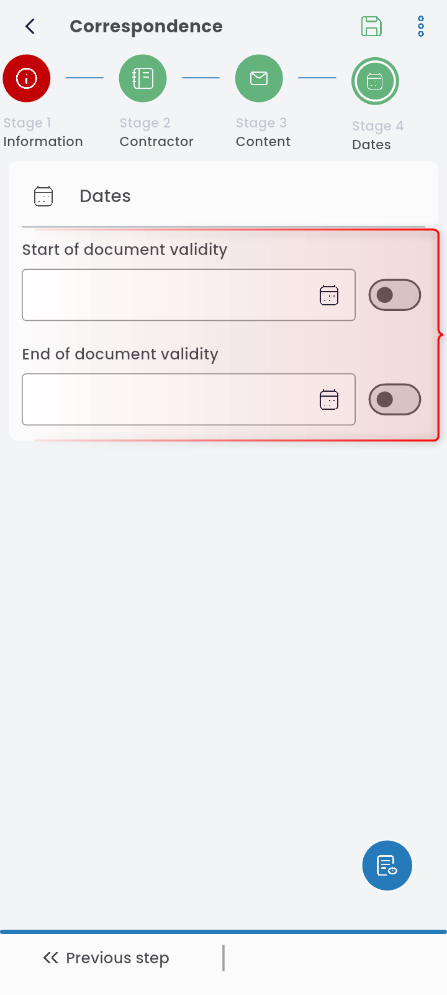
You can check the boxes so that validity is not limited by dates (you can enable this separately for the start and end dates or both).