Video tutorial:
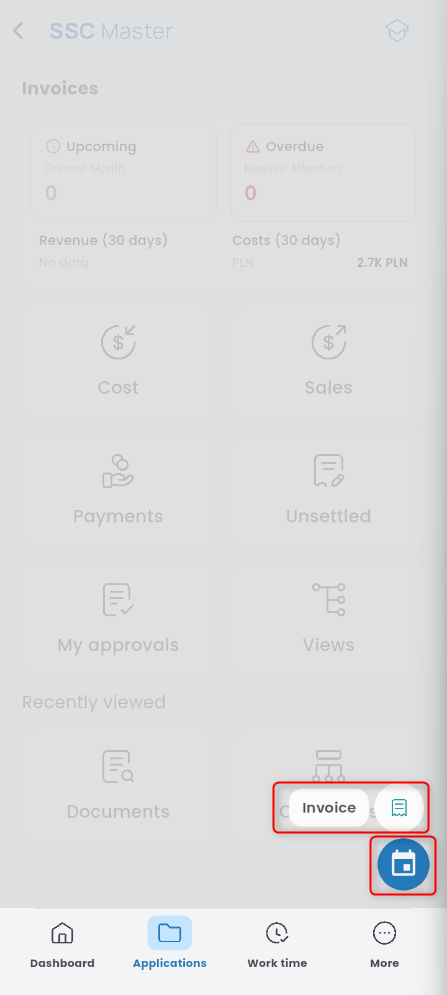
In the INVOICE application, press the “+” button and select INVOICE.
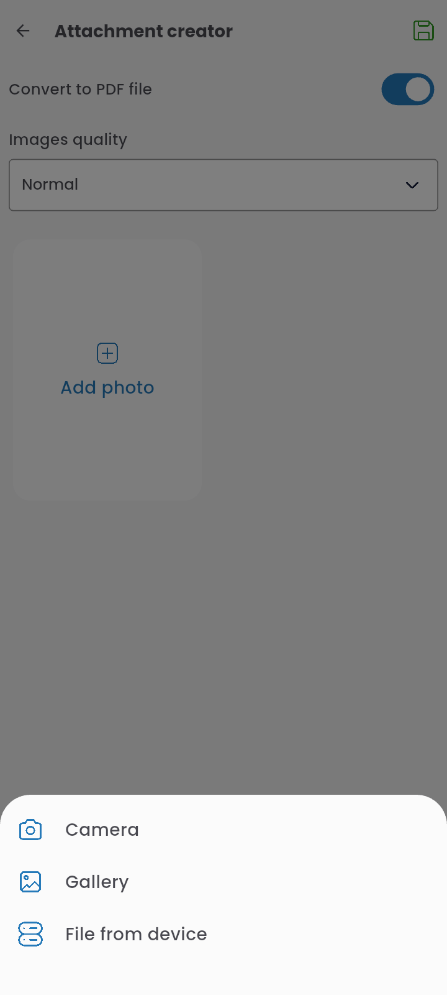
A file attachment wizard will appear. You can add an attachment now or skip this step and add it later.
Information
In the first tab, you can select the type of invoice.
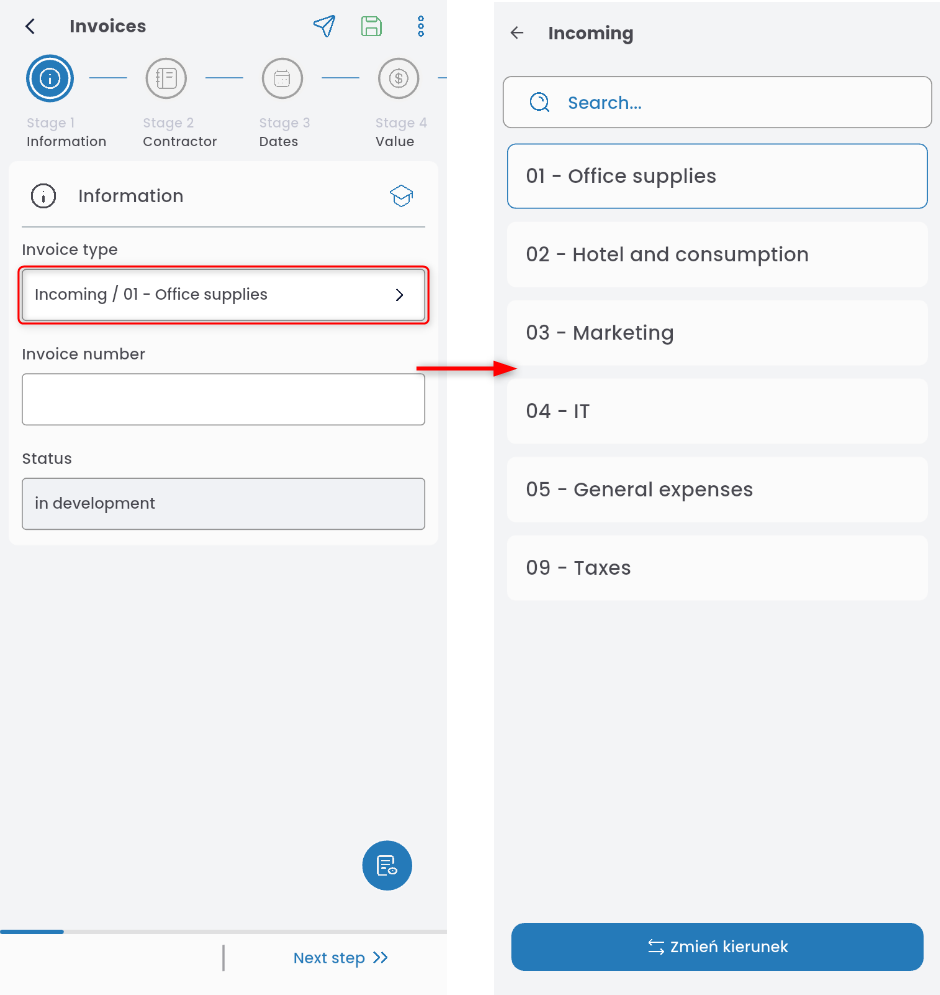
Enter the invoice number (from this tab, you can also change the invoice type and direction if needed).

Contractor
To enter the contractor, click the FULL CONTRACTOR NAME field. Enter search data to find the contractor’s record. You can change the search criteria by clicking the arrows in the search window and selecting the appropriate option. Once the contractor is selected, their data will be transferred to the invoice wizard. The transferred data can be edited.

You can enter the contractor’s location.

and specify the bank account number.

To check the VAT taxpayer status, click the cloud icon.

Dates
Fill in the date fields,
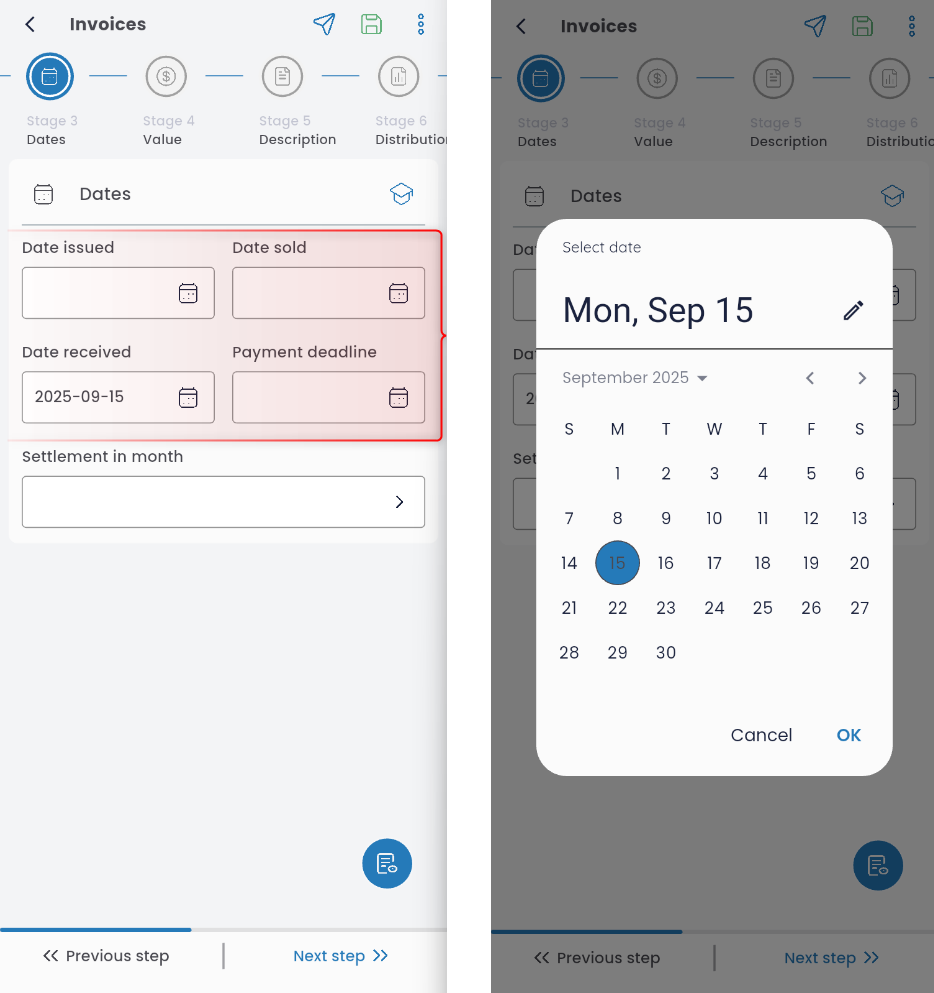
Indicate the invoice settlement month.

Switching to the VALUE tab will display the cost table. Fill in the PURCHASE ITEM field, enter the quantity, select the unit, enter the net price, and choose the VAT rate. The net and gross amounts will be calculated automatically.
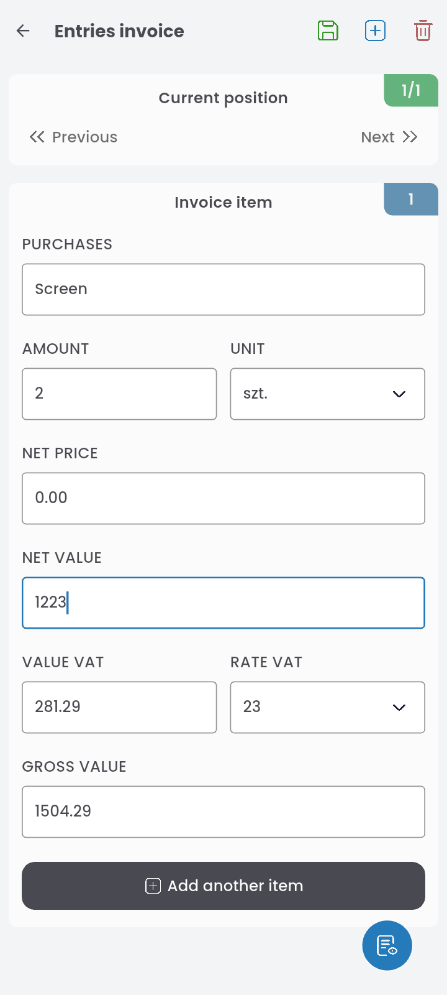
You can immediately add another item by clicking the + SAVE AND ADD ANOTHER ITEM button, or save and exit the table by clicking the floppy disk icon in the upper right corner.

Added items will be displayed in the VALUE tab. You can add another item by clicking +ADD ITEM, edit an existing one by clicking the pencil icon in the item header, delete an item by clicking the red “x,” and duplicate it by clicking the two-paper icon.
In this tab, you can also change the currency and payment form.

The list of items will appear in the summary.

Description
In this tab, you can add an invoice description, as well as add an attachment, preview it (by clicking the eye icon), delete it (using the red “x” icon), and download it (using the downward arrow icon).

Assignment
This tab contains the posting table. The summary displays the difference between the invoice amount and the costs already entered in the posting. To add a new cost, click + ADD ITEM.

In the displayed window, fill in the fields, enter the net amount, and select the VAT rate. The % and VAT amount fields will be calculated automatically.
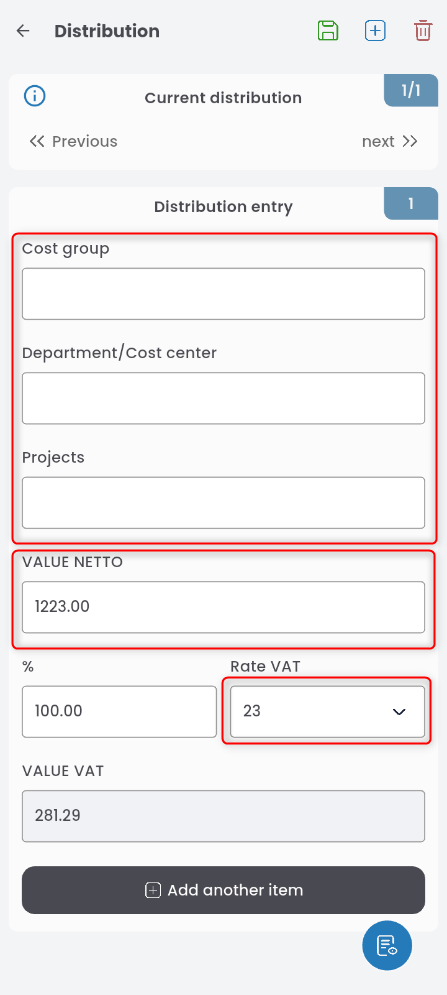
To add another posting item, press +SAVE AND ADD ANOTHER ITEM or click the floppy disk to save and return to the table.

If the allocated costs equal the total invoice amount, the summary will no longer be displayed.

Approval
Depending on the configuration, a given document type may require approval. Press the approval level and select the decision-maker from the list. Note: the person may be filled in automatically and cannot be changed.
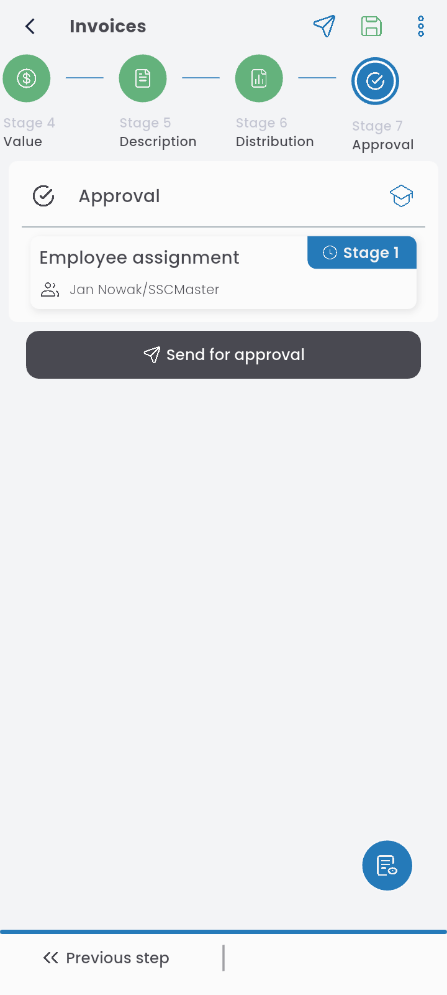
Save the completed document or send it for approval.