Video tutorial:
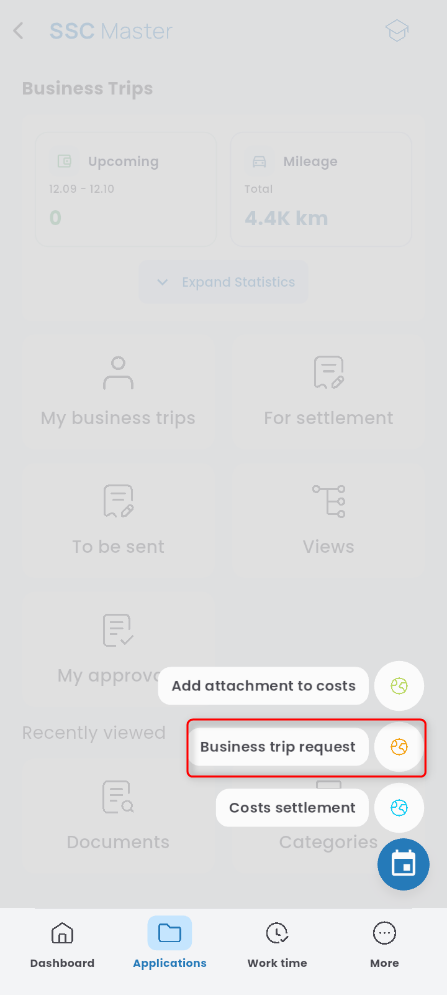
To start the business trip request wizard, open the Business Trip app, press the “+” button, and select BUSINESS TRIP REQUEST.
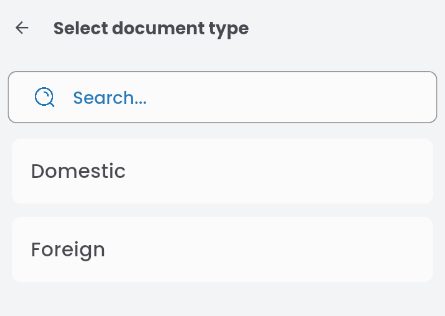
Choose whether you want to request a domestic or international trip.
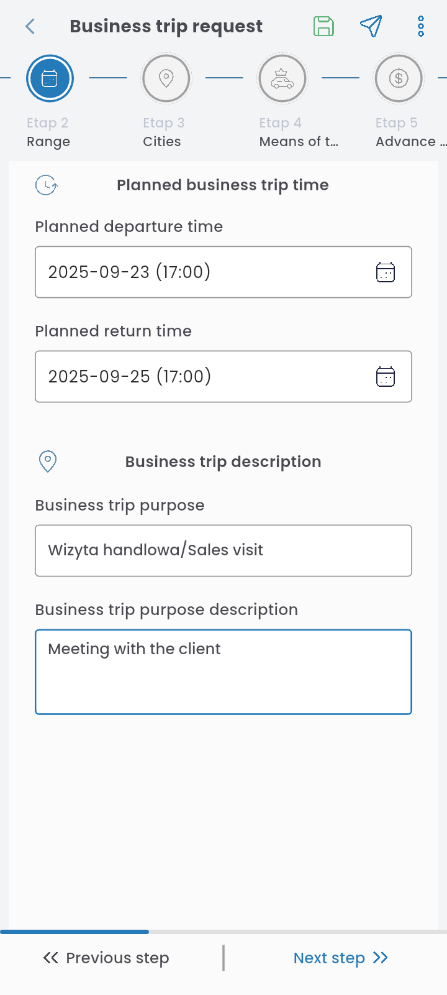
Range
Enter the departure and return dates and times.

Select the purpose of the trip. You can choose it from the list or enter it manually. If the selected purpose requires a description, also provide a description (if it doesn’t require one, the PURPOSE DESCRIPTION field will not be shown).
Information
You can change the applicant. Press the REQUESTER field and select the appropriate person from the list.
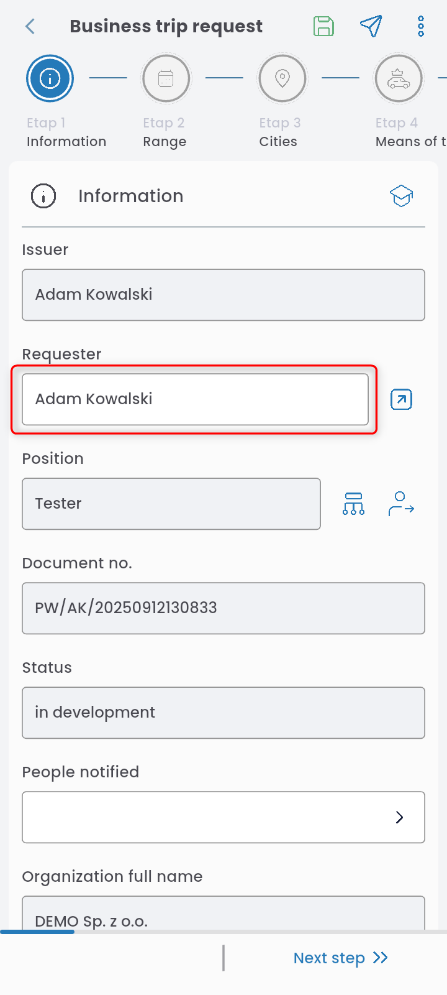
If the requester has more than one employment, you can specify which employment the request concerns. Press the button to the right of the POSITION field and select the correct employment.

To add a business trip location, go to the CITIES tab. A list of countries will automatically appear. Select the appropriate country from the list.

Enter the name of the city and, if necessary, edit the exchange rate date. You can add more countries by pressing the “+” button in the top right corner and repeat the steps. Save the completed location card by pressing the diskette icon.

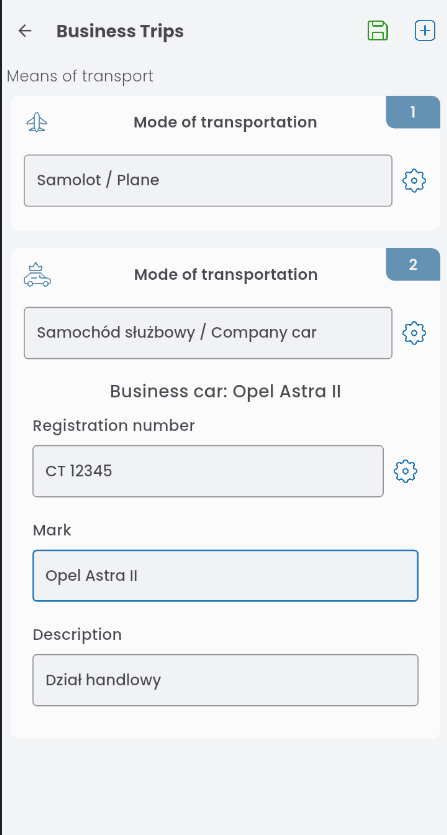
Go to the MEANS OF TRANSPORT tab. A selection list will open. Choose one (or more) and confirm with the diskette icon.

If you select a company or private car, additional windows will appear. For a company car, depending on permissions, you can select one from the list
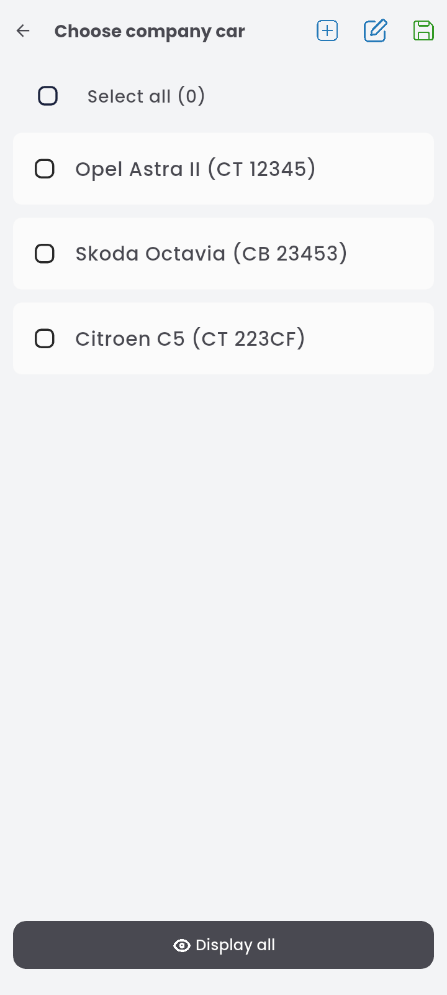
or add a new one by entering details: registration number, make, and description.
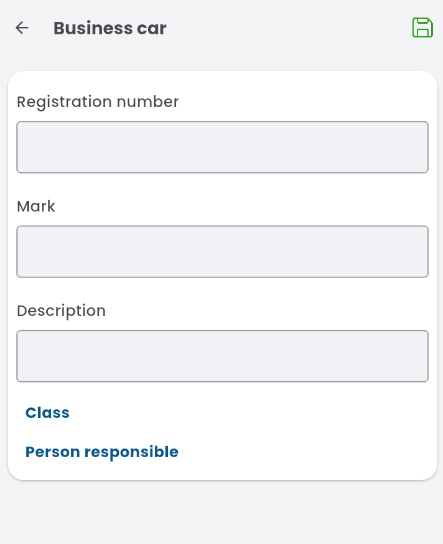
For a private car, you also need to provide registration number, make, engine capacity, and vehicle class. If you want to add another car, press the “+” button in the top right corner. Save the completed transport means card with the diskette icon.
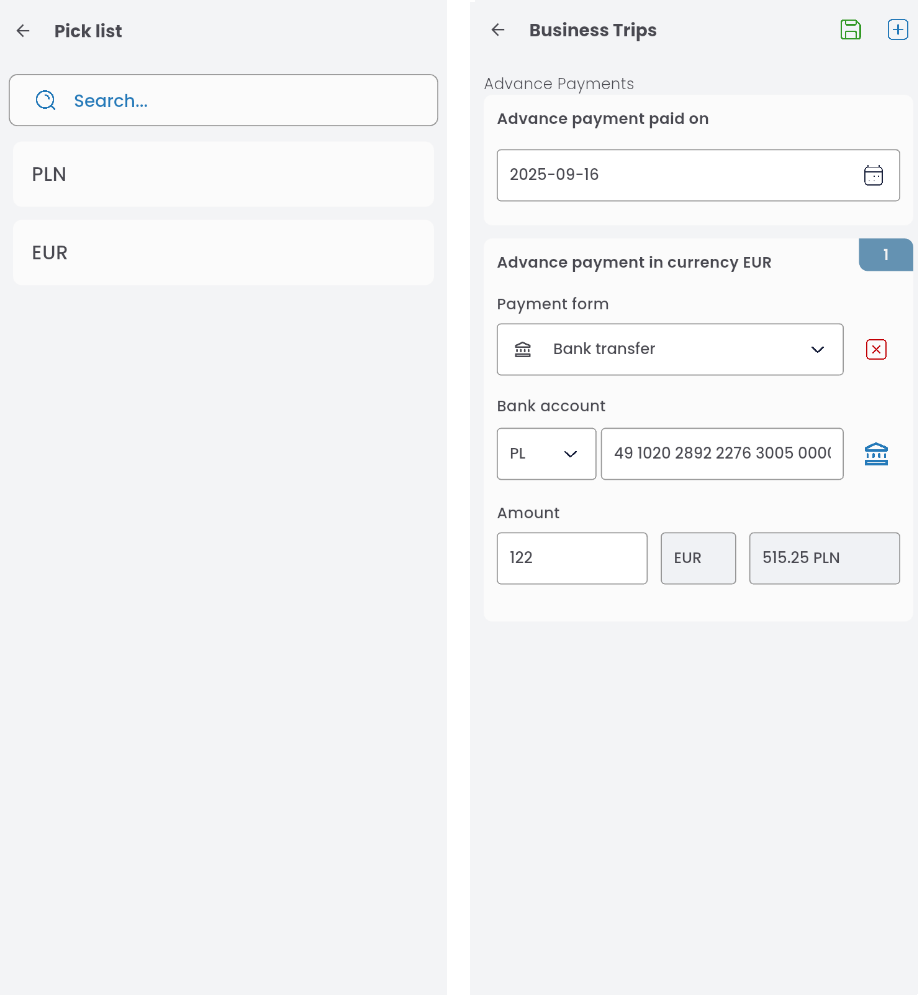
If you want to request an advance payment, go to the ADVANCE PAYMENT tab. The list of available currencies will automatically appear. Select the appropriate one. In the advance payment card, fill in the date of advance payment, amount, and payment method. When selecting bank transfer, a field for the bank account number will appear. Fill it in (if your profile in the ORG app has the account number filled in, it will auto-populate). To add another advance payment, press the “+” button in the top right corner, or save the completed card with the diskette icon.
To send the completed request for approval, go to the APPROVAL tab, click on the approval path level, and assign the person responsible for approval. Note: depending on your company’s procedures, the approval path may already be filled and not editable.
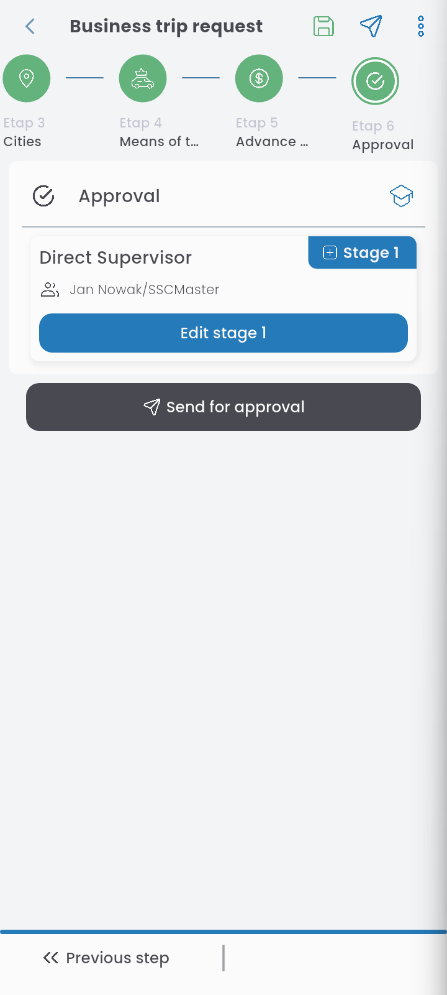
Press the button to send for approval.