Video tutorial:
To submit a request for a work arrangement, go to the LABOR application, click the + button, and select LABOR REQUEST.
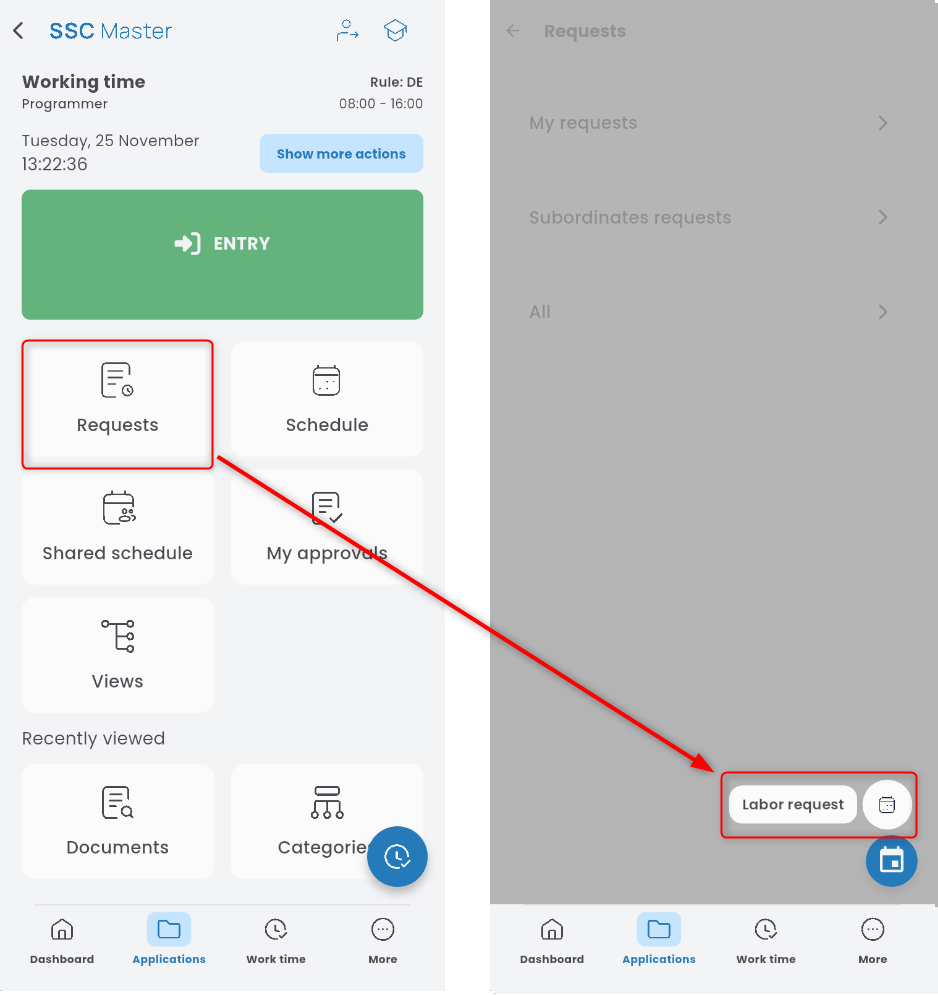
From the list, choose OCCASIONAL REMOTE WORK.

Click the ADD ROW button.

Specify the date range for the request.

If you don’t want the request to apply to all days within the selected range, but only to individual or recurring days within that period, click ADD PLANNING RULE.

Choose whether you’re interested in regularly recurring weekdays (e.g., every week, every second, third, or fourth week) and specify which days apply (save using the disk icon),
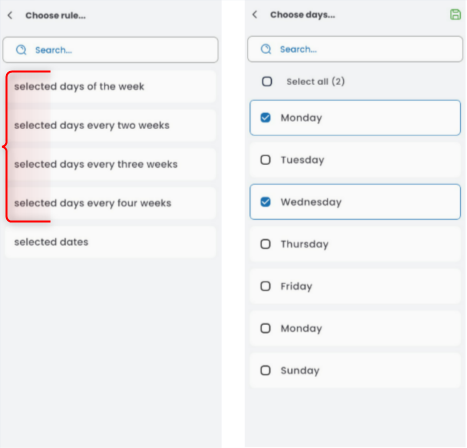
or select specific dates. Indicate the individual days the request should cover.

You can set up more than one rule. To do this, click ADD PLANNING RULE and repeat the steps described above.
To delete/modify a rule (e.g., choose a different one or change the days within it), click the gear icon and select the appropriate option.
If you want to remove specific dates from a rule, click the trash icon next to the relevant date.
If the rule should account for public holidays, check the appropriate box.
Save the completed request form using the disk icon.
In the REMOTE WORK ADDRESS tab, check if the address is correct. If necessary, you can edit it.
In the DECLARATIONS tab (if active — depending on your company’s procedures), check the required declarations. Mandatory ones are marked with an asterisk.
In the APPROVAL PATH tab, click SEND FOR APPROVAL. If the path is not filled in, click EDIT STAGE and select the decision-maker from the list.