Video tutorial:
SECONDMENT REQUEST
To create a delegation request, click the plus (+) button available in the LABOR application view or from the Dashboard, and select LABOR REQUEST.

From the list, choose EMPLOYEE SECONDMENT.
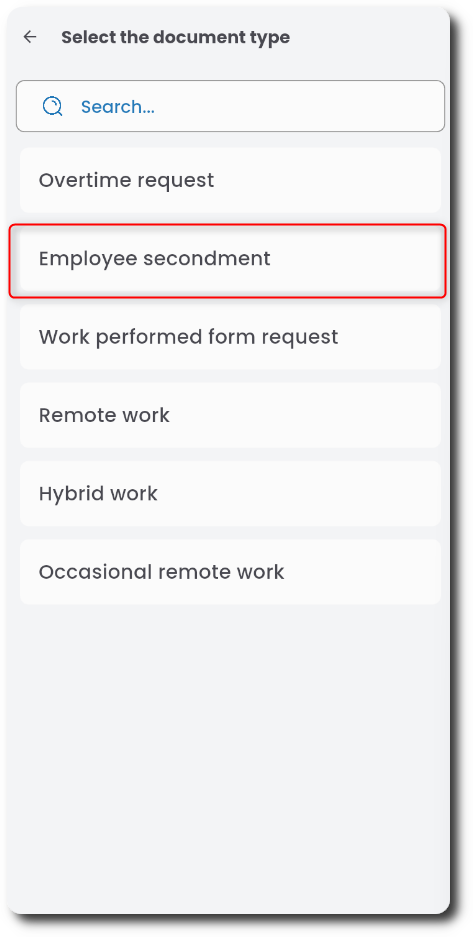
A window will open to select employees for delegation.
If you want to request the temporary assignment of an employee from another department/store to your team, go to the SEARCH FOR EMPLOYEE tab.

Specify the date on which you need the employee.

If you’re looking for an employee who has a scheduled day off on that date, select the SCHEDULED DAY OFF checkbox.

If you’re looking for someone who has scheduled work on that day, select the SCHEDULED WORK checkbox.

You can also specify the hours during which the employee should be available.

To define search criteria, click the SEARCH CRITERIA field, select from the list, and click the disk icon to save the criteria card.

To add or remove specific criteria, click the gear icon and choose the appropriate option from the menu. After selecting “add element,” pick the specific criteria items.

After selecting “add element,” pick the specific criteria items.

Once your search card is complete, click SEARCH FOR EMPLOYEE.

A list of employees matching the criteria will appear, along with a table showing their working hours for the selected day, the previous day, and the next day.
Select the appropriate employee(s) and confirm the selection.

A window will then appear showing the target department/store/team where the employee will be delegated, and the responsible person. Choose the date range.
If you want to change the employee’s work schedule, click the WORK PLAN field.

You can assign a work schedule rule, or In the Work Time tab, specify specific working hour

The NO CHANGES tab will remove any previously applied changes to the work schedule.

Save the delegation card by clicking the disk icon.

If the document requires a comment, enter it in the COMMENTS field.

Go to the APPROVAL tab. If the approval level is not filled automatically, select the decision-maker.
Send the completed request for approval.

Instruktaż wideo:
DELEGATING AN EMPLOYEE
Select the DELEGATE AN EMPLOYEE tab.
Choose the person you want to delegate from the list and confirm with the disk icon.

In the next screen, click the DELEGATION field and select the department the employee will be assigned to.
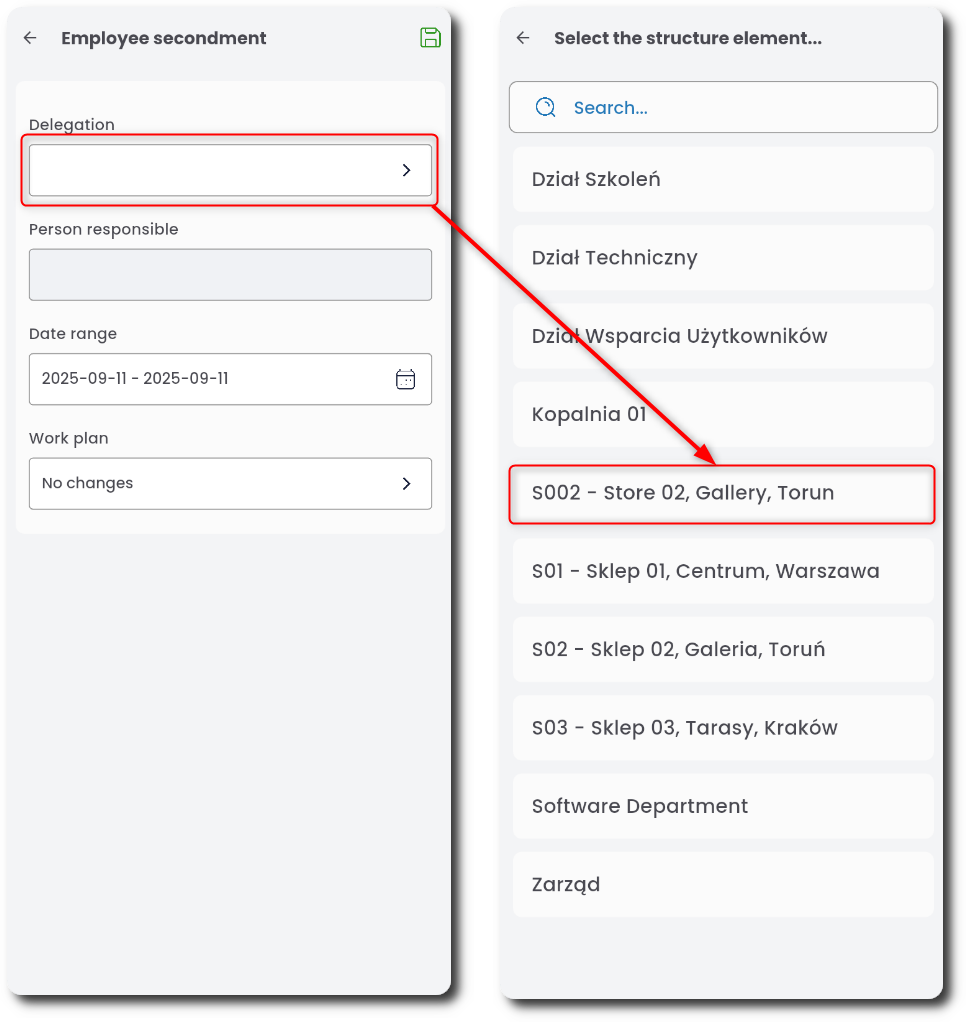
Select the delegation date range.

If you wish to change the employee’s work schedule, click the WORK PLAN field.

You can assign a work schedule rule,

Or go to the Work Time tab and enter specific working hours.

The NO CHANGES tab will remove any previously made changes to the schedule.

Confirm the delegation by clicking the disk icon.
The entered data will appear in the document details. Here, you can edit the date, delegation location, and work schedule, and add a comment if needed.

Finally, send the request for approval.