In the CORRESPONDENCE app, press the “+” button and select CORRESPONDENCE.

An attachment wizard will appear. You can add an attachment now or skip this step and add it later.

In the next step, a list of available types of correspondence will appear. You can select the appropriate one from the list or change the correspondence direction by displaying the second list (incoming <-> outgoing).

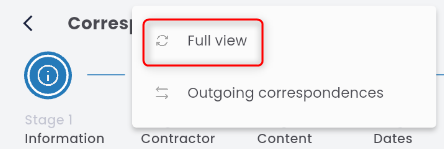
The new document will open in the wizard view tab — INFORMATION. Press the menu button (three dots in the upper right corner) and select FULL VIEW.
Basic Data
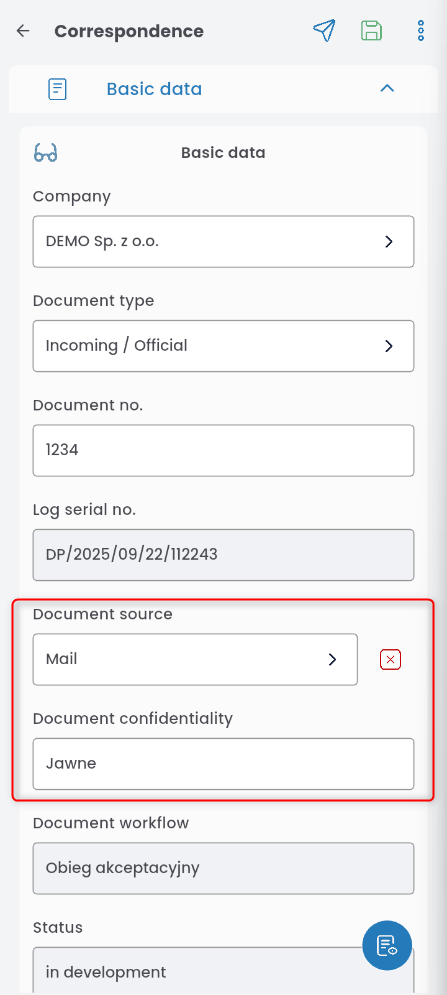
Enter the document number; if necessary, you can also edit the journal number.

You can enter the document source and define its confidentiality.
If needed, indicate the notified person.

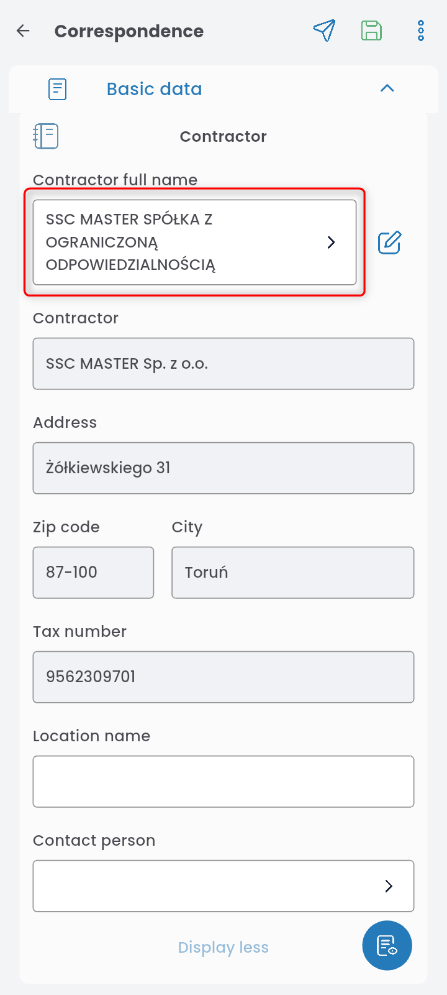
Select the contractor.
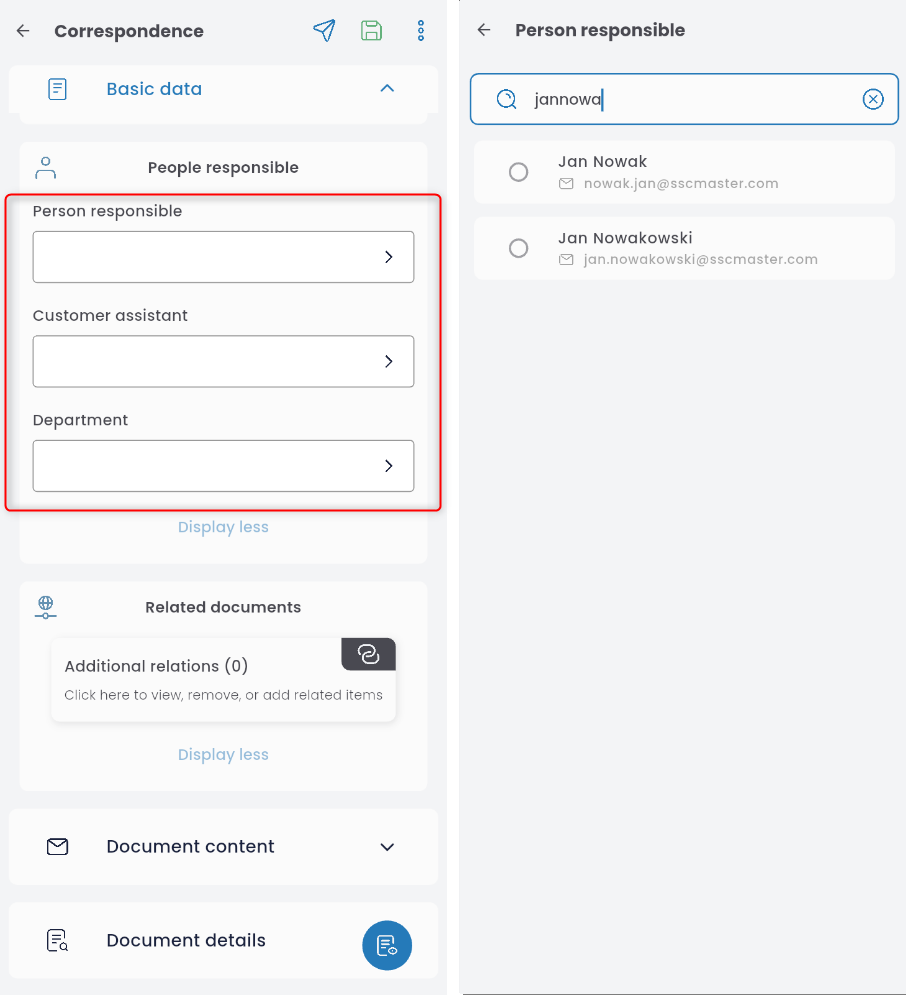
You can enter the client assistant (or change it if one is added automatically), the responsible person, and the department.
Document content
In this tab, enter the subject and content of the message.

Document details
In this tab, you set the dates: document date, receive date, and suggested response date.

After providing a response, you can check the Answer Given

Approval path
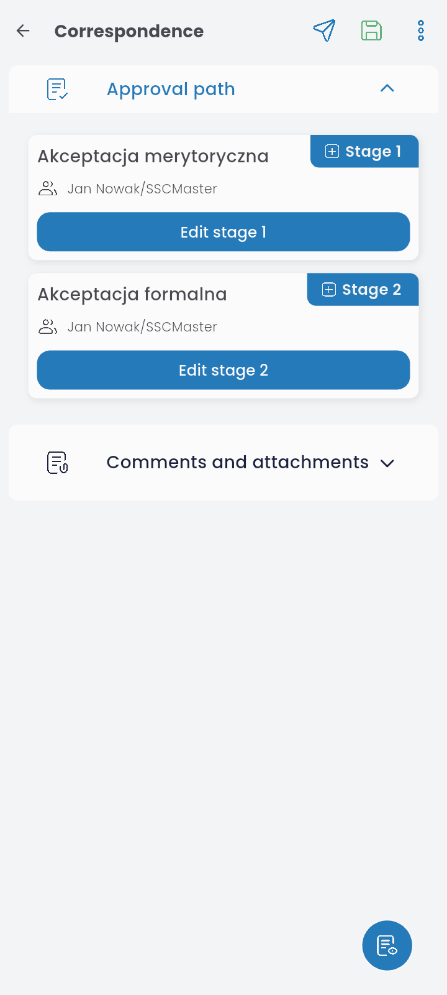
The presence of this tab depends on the company’s configuration and internal procedures. It is used to assign the decision-maker who approves the document. Press the approval level and select the decision-maker from the list. Note: the person may be filled in automatically and cannot be changed.
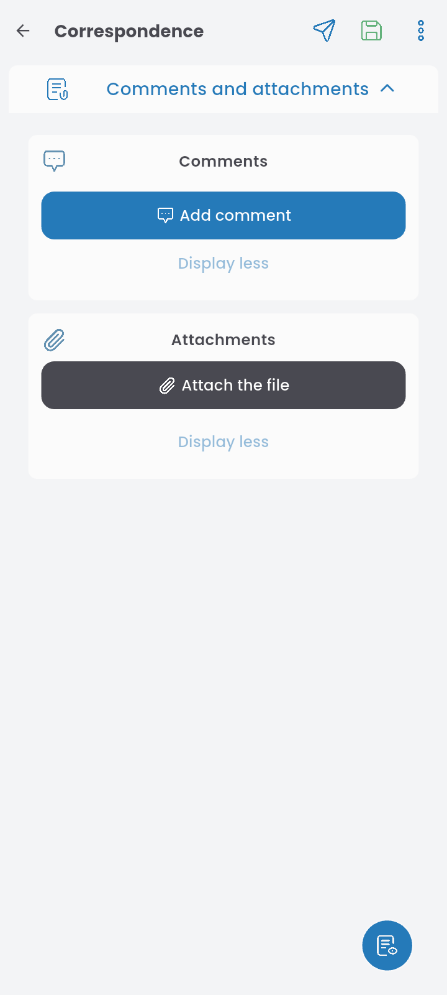
Comments and attachements
This tab is used for adding and viewing additional comments and attachments.