Video tutorial:
You can find replacements in the REPLACEMENTS tile on your Dashboard.

A window will open with two tabs: MY (when someone is replacing you) and ASSIGNED (when you are replacing someone).

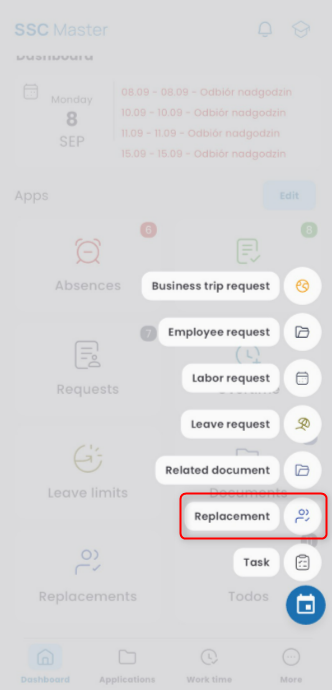
To create a replacement, click the “+” button and select REPLACEMENT (this can be done from the Dashboard, the REPLACEMENTS Mini Dashboard, or when submitting leave or delegation requests).
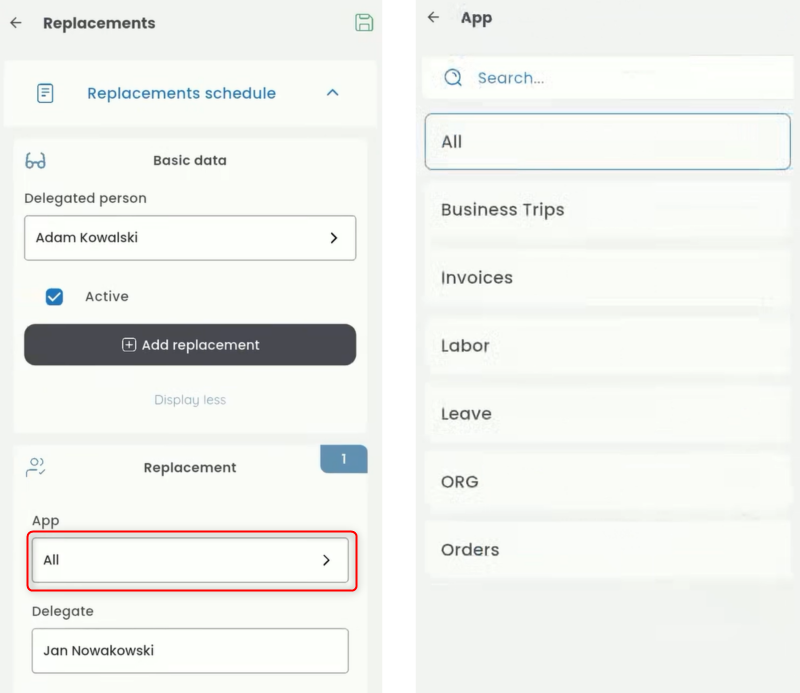
In the displayed replacement document, select the replacing person. Click the field and choose a person from the list.

By default, the person will replace you in all applications. To select only one, click the APPLICATION field and choose the appropriate one from the list.
You can further narrow the scope of the replacement by selecting specific document types within the chosen application. Click the DOCUMENT TYPE field and select the relevant ones from the list.
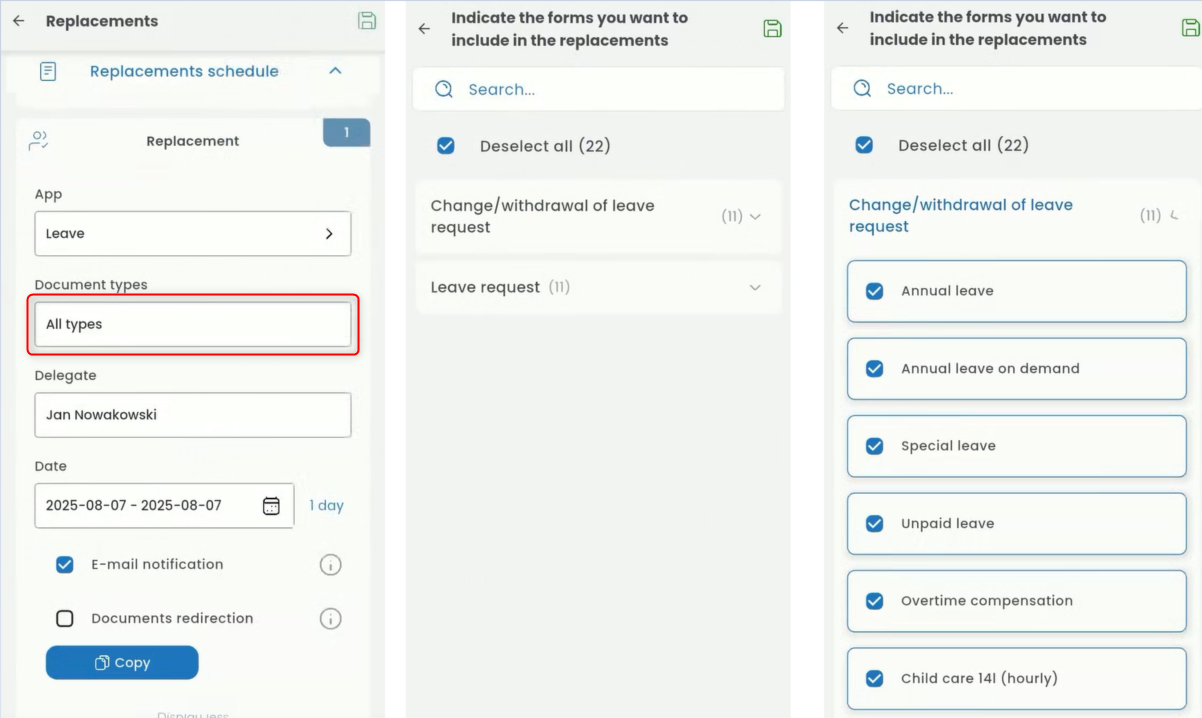
You can further narrow the scope of the replacement by selecting specific document types within the chosen application. Click the DOCUMENT TYPE field and select the relevant ones from the list.
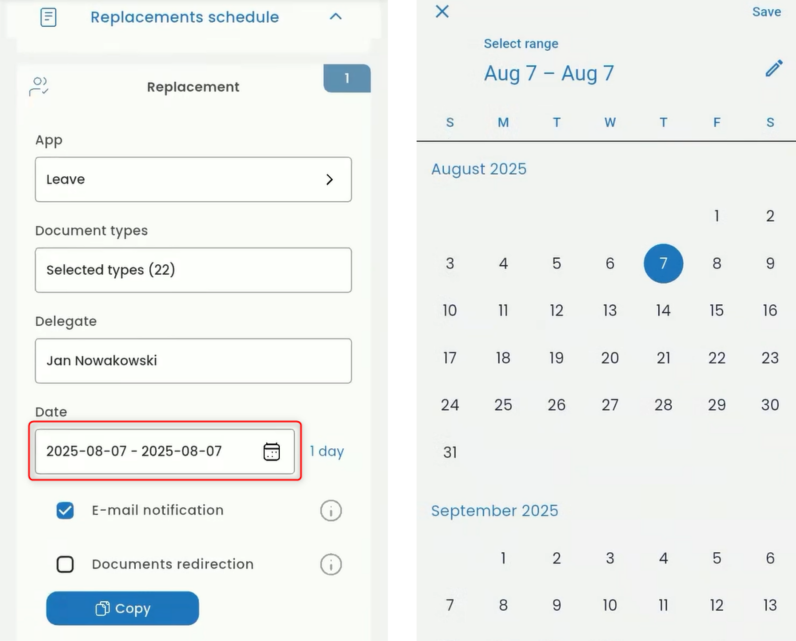
Check the box if e-mail notifications about documents should be sent.

Check the box if documents should be forwarded to the next replacements.

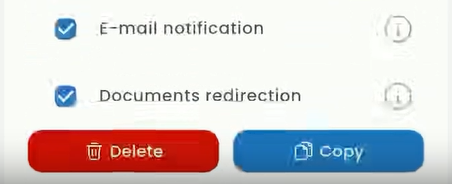
You can copy or delete the replacement card using the appropriate buttons.
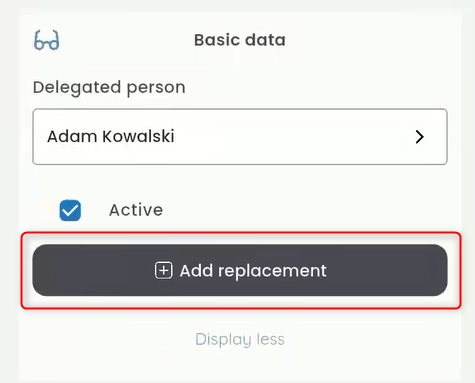
To add a new replacement card, click the ADD REPLACEMENT button in the REPLACEMENT SCHEDULE tab and follow the steps as previously described.
Save the completed replacement document using the disk icon.